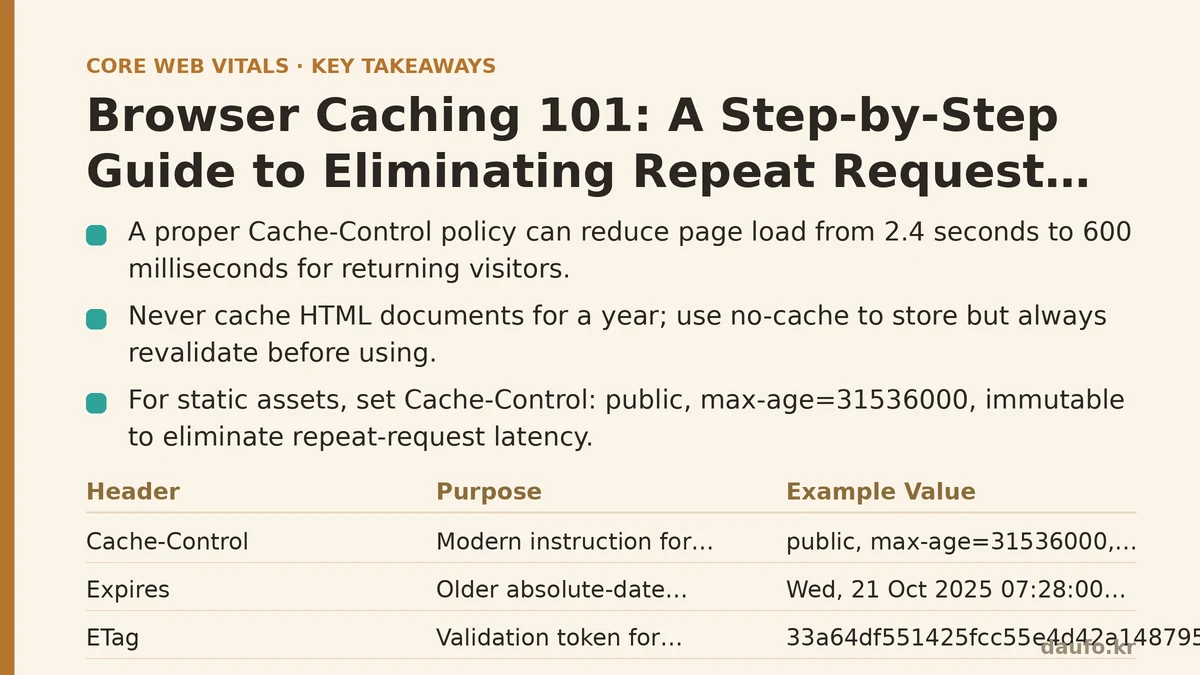
Most developers assume the biggest performance win comes from compressing images or minifying JavaScript. In practice, for a returning visitor, the single largest savings come from a header you likely haven’t touched in months: Cache-Control. A properly configured caching policy can turn a 2.4-second page load into a 600-millisecond one, not by making the server faster, but by preventing the browser from asking the server the same question twice.
This guide walks through the beginner mechanics of HTTP caching, then moves to the advanced configuration decisions that separate a working setup from a fragile one. You will leave with a validated, copy-pasteable configuration and a testing procedure to confirm it works.
Beginner Level: The Bare Minimum That Works
What the Browser Asks for, and What It Should Get
Every time a browser requests a resource, the server responds with headers. Among them, two matter most for caching:
Cache-Control: The modern instruction set. Tells the browser if and for how long to store a response.Expires: The older, absolute-date format. Still respected but largely superseded byCache-Control.
A third header, ETag (Entity Tag), acts as a validation token. The browser sends it back on a subsequent request, and the server replies either with 304 Not Modified (the cached copy is still valid) or 200 OK with new content.
For a first configuration, you need five lines in your server config.
Step 1: Set the Baseline for Static Assets
Create a rule that applies to your images, CSS, JavaScript, and fonts. In an .htaccess file (Apache) or a nginx.conf block, add:
<IfModule mod_headers.c>
  # Cache static assets for 1 year
  <FilesMatch "\.(css|js|jpg|jpeg|png|gif|webp|svg|woff2|ico)$">
    Header set Cache-Control "public, max-age=31536000, immutable"
  </FilesMatch>
</IfModule>
For nginx, the equivalent block inside your server block:
location ~* \.(css|js|jpg|jpeg|png|gif|webp|svg|woff2|ico)$ {
    expires 1y;
    add_header Cache-Control "public, max-age=31536000, immutable";
    try_files $uri =404;
}
Three directives matter here:
public— allows any intermediary (CDN, proxy) to store the response.max-age=31536000— one year in seconds. Measurably reduces repeat-request latency to zero for these assets.immutable— tells the browser “do not even revalidate this file during its lifetime.” This is the strongest signal you can send.
Step 2: Handle the HTML Document Differently
Never cache your root HTML document for a year. If you do, users will see stale page content even after you deploy fresh markup. Set a short, revalidating cache:
<FilesMatch "\.(html|htm)$">
  Header set Cache-Control "no-cache, must-revalidate"
</FilesMatch>
no-cache is poorly named. It does not mean “do not store.” It means “store, but always ask the server if the copy is still valid before using it.” The server checks the ETag and responds with 304 if unchanged. The cost is one round trip, but the response body (usually 5–50 KB of HTML) doesn’t need to be re-sent.
Step 3: Verify It Works
Open DevTools → Network tab. Reload the page once. Then reload again.
Look for:
- A second request to the same asset. In the “Size” column, it should show
(from disk cache)or(from memory cache). - A
304 Not Modifiedresponse for your HTML document. - A
200 OKresponse withCache-Control: max-age=31536000, immutablein the response headers for your CSS and JS files.
If you see (from memory cache) on the second load, your configuration is working. If every request returns 200 OK from the network, your headers are missing.
That is the complete beginner setup.
Advanced Level: When the Bare Minimum Breaks
Problem 1: The Fingerprint Fallacy for HTML
Many CMS themes generate index.html with inline CSS or JavaScript. If your HTML contains inlined assets, no amount of max-age on external files will help. The HTML document itself must be fetched and parsed on every visit.
Solution: Use a build step that fingerprints your static files. Webpack, Vite, or Eleventy can append a content hash to the filename: styles.a1b2c3d4.css. When the file content changes, the hash changes, the URL changes, and the browser fetches a new file. For all other visits, the immutable header serves the cached copy.
With fingerprinting, you can safely set max-age=31536000, immutable on all static assets, because a change to content produces a new URL.
Problem 2: The ETag Revalidation Trap
Consider what happens when you send both ETag and Cache-Control: max-age with an immutable flag. The browser should skip revalidation entirely for immutable files. But some CDNs and older browsers still send conditional requests for files with ETag present. The result: a network round trip per asset, defeating the purpose.
The fix is to remove ETag for immutable assets and keep it only for revalidatable resources (your HTML).
In Apache:
<FilesMatch "\.(css|js|jpg|jpeg|png|gif|webp|svg|woff2|ico)$">
  Header unset ETag
  Header set Cache-Control "public, max-age=31536000, immutable"
</FilesMatch>
FileETag None
In nginx:
location ~* \.(css|js|jpg|jpeg|png|gif|webp|svg|woff2|ico)$ {
    etag off;
    expires 1y;
    add_header Cache-Control "public, max-age=31536000, immutable";
}
This forces the browser to trust expires and max-age without asking for validation. You trade immediate invalidation capability (you cannot force a refresh without a new filename) for the fastest possible repeat-load performance.
Problem 3: When NOT to Cache With immutable
immutable is a promise. The browser will not contact your server for that file within the max-age window, even if the user hits refresh. There is no fallback. If you update logo.png without changing its filename, every visitor for the next year sees the old logo.
Consider the failure mode: you deploy a security patch that fixes a bug in app.js. You forget to change the filename. For the next 30 days (or year), every returning visitor runs the vulnerable code from their cache. They will not get the fix until the cache expires.
When immutable is safe: only with content-hashed file names. If you have no build process that appends hashes, use max-age=86400 (24 hours) and keep ETag for automatic revalidation.
Problem 4: The Empty Cache-Fallback Edge
A subtle failure appears when you cache a resource for a year but the page that references it is cached for only 5 minutes. If the browser loads the HTML, the HTML points to script.js. The browser fetches script.js (first time), caches it for a year. But the HTML template on the server now references script.v2.js. The old script.js sits in cache, unused. This is harmless—just wasted cache space. However, the opposite is dangerous: an HTML page cached for a year that references a script that was never cached. The browser gets the HTML from cache, then fetches the script fresh. If the script is missing from the origin (you deleted it), the page breaks.
Rule: Always keep your HTML cache lifetime shorter than the lifetime of the assets it references. no-cache for HTML guarantees this.
The Advanced Verification Sequence
The beginner test (reload and check for disk cache) proves the package works. The advanced test proves it works under edge cases:
Hard reload test. Press Ctrl+Shift+R (Cmd+Shift+R on Mac). This bypasses cache for the requesting page. You should see
200responses for everything. The assets still carry theirCache-Controlheaders. Now press F5 (normal reload). Everything should come from cache.Simulated throttling test. In DevTools, set network throttling to “Slow 4G.” Reload the page once (assets cached). The HTML request should still take a network round trip, but the total page load should drop by 70% or more compared to the first load. If your HTML is also served from cache (it shouldn’t be), the load time will approach zero but you risk staleness.
ETag behavior test. On your HTML request, look at the response header
ETag. Note the value. Reload. The request header should includeIf-None-Matchwith that same value. The response should be304 Not Modified, with a response body of zero bytes.
Summary Table: Cache-Control Values at a Glance
| Directive | What It Tells the Browser | Use For | Risk If Misused |
|---|---|---|---|
max-age=31536000, immutable | “Store this file locally for 1 year; do not even ask the server to validate it.” | Content-hashed CSS, JS, images, fonts. | Stale content for up to a year if the file name doesn’t change. |
max-age=86400 | “Store for 24 hours, then revalidate.” | Non-hashed assets, images you might update in place. | Up to 24 hours of stale content. |
no-cache, must-revalidate | “Store, but always ask the server for validation.” | HTML documents, API responses. | Slight latency cost per request (a single round trip). |
no-store | “Do not store this anywhere.” | Sensitive data (user accounts, session tokens, payment pages). | No caching benefit; performance cost is the point. |
Configure your static assets with a one-year immutable policy backed by content hashes, your HTML with no-cache revalidation, and your API responses with explicit no-store where confidentiality matters. Test both the happy path and the failure modes, then measure the repeat-visit load time. The difference between your first load and your second is the payoff of correct caching.
Related guides: Browser Caching Setup: A Beginner’s Step-by-Step Guide, Caching Strategies for Beginners: A Step-by-Step Guide to Faster Page Loads, and Troubleshooting Why Your CDN Isn’t Improving Page Speed: Common Mistakes.
🔗 Recommended Reading
- How to Enable Browser Caching on Your Website: A Beginner's Step-by-Step Tutorial
- Web Performance Monitoring Tools Compared: Lighthouse, PageSpeed Insights, and WebPageTest
- CDN vs. Origin Server: Which to Optimize First for Latency
- Common Mistakes That Break Web Font Performance and How to Fix Them
- Site Speed Optimization for Fintech Websites: Balancing Security, Compliance, and Performance