Core Web Vitals (CWV) are a set of three user-centric performance metrics—Largest Contentful Paint (LCP), Interaction to Next Paint (INP), and Cumulative Layout Shift (CLS)—that Google uses as ranking signals. For ecommerce product pages, these metrics measure the precise moments that determine whether a visitor converts or abandons their cart. A product page that loads its hero image in 3.5 seconds, delays button responsiveness past 200 milliseconds, or shifts the “Add to Cart” button while a user is about to click it will consistently underperform regardless of product quality or pricing strategy.
The optimization playbook for product pages differs from content sites. Product pages carry heavy media assets, interactive UI elements, and dynamic content—all competing for the browser’s attention. What follows is a myth-vs-reality breakdown of the most persistent misconceptions about CWV optimization, with code examples that you can apply to a real implementation.
Myth #1: “You need a CDN to fix LCP.”
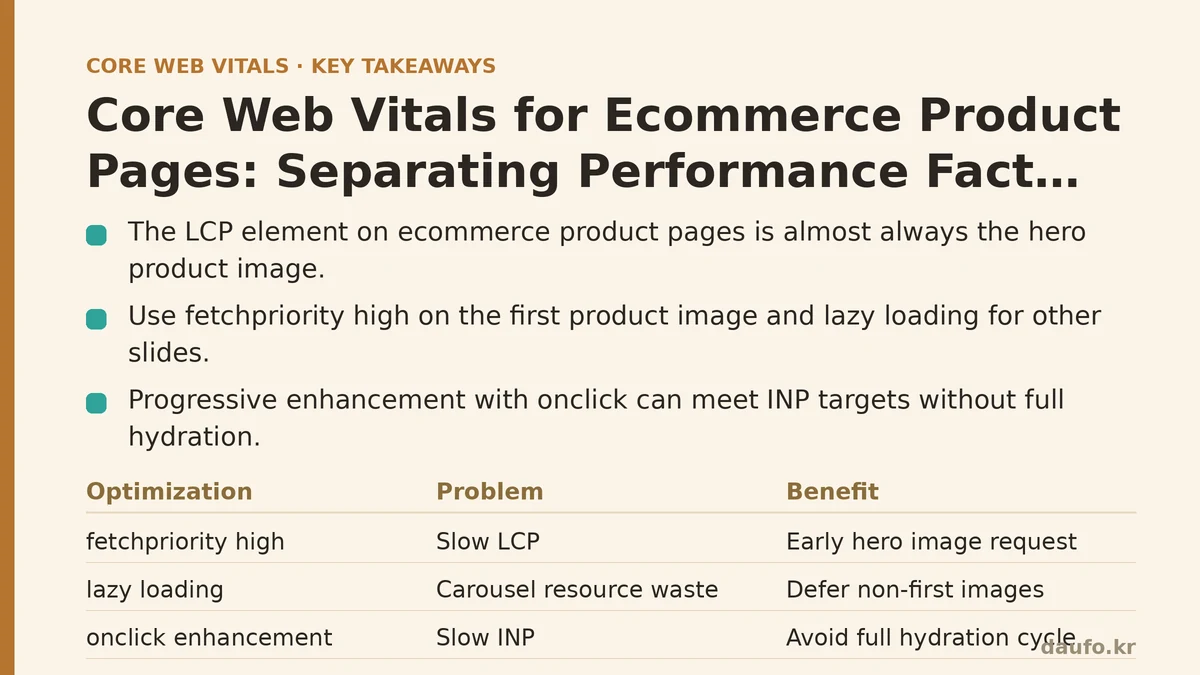
A CDN solves latency between the user and your server. It does not solve the more common cause of slow LCP on product pages: the browser’s internal resource scheduling. The LCP element on a product page is almost always the hero product image. Even with a CDN delivering that image in 50 milliseconds, if your browser spends 2 seconds parsing a large JavaScript bundle before it can even request the image, your LCP score will be poor.
Reality: Prioritize the image request in the HTML fetch priority queue.
The browser fetches resources in order of its own heuristics. To guarantee your product image is requested early, you need to signal its importance explicitly. The fetchpriority attribute is the direct mechanism for this.
<!-- Before: hero image treated as default priority -->
<img src="/products/chair-hero.jpg" alt="Ergonomic office chair" width="1200" height="800" />

<!-- After: hero image requested immediately -->
<img
  src="/products/chair-hero.jpg"
  alt="Ergonomic office chair"
  width="1200"
  height="800"
  fetchpriority="high"
  decoding="async"
/>
Implementation path:
- Setup: Identify the LCP element using the Performance panel in Chrome DevTools. Navigate to a product page, record a trace, and look for the “Largest Contentful Paint” entry in the timings.
- Change: Add
fetchpriority="high"anddecoding="async"to that image. Thedecodingattribute offloads image decoding from the main thread. - Verify: Re-run the trace. Check the “Network” panel: the image request should start at or near the beginning of the document load, not after your main JavaScript bundle.
Trade-off: If you have a carousel of product images, setting fetchpriority="high" on all of them dilutes the effect. Apply it only to the first, statically-rendered slide. The rest should use loading="lazy" to defer their download until the user scrolls.
Myth #2: “Hydration is the only way to make product interactions fast.”
Product pages are interactive by nature. Users click color swatches, open size guides, and change quantities. The common solution—server-side rendering followed by client-side hydration—works, but it carries an inherent cost. Hydration means downloading, parsing, and executing the JavaScript that powers the entire page component tree before any interaction handler is attached. On a product page with a large bundle, this can make the first click feel unresponsive.
Reality: Progressive enhancement with onclick attributes achieves INP targets without a framework render cycle.
You don’t need React to update a price or swap an image. You need a small, self-contained script that listens for a specific interaction and updates a specific DOM node. This approach avoids paying the cost of a full virtual DOM diff for a single change.
Implementation path (Vanilla JavaScript):
// gallery.js - handles image swap on thumbnail click
const thumbnails = document.querySelectorAll('[data-thumb]');
const heroImage = document.getElementById('product-hero');

thumbnails.forEach(thumb => {
  thumb.addEventListener('click', (event) => {
    const newSrc = thumb.dataset.thumb;
    // Update the hero image; the browser handles the new request.
    heroImage.src = newSrc;
    // Optional: preload the next likely image
    const link = document.createElement('link');
    link.rel = 'preload';
    link.as = 'image';
    link.href = newSrc;
    document.head.appendChild(link);
  });
});
Why this beats hydration for INP: When a user clicks a thumbnail, the browser executes that addEventListener callback in microseconds. There’s no React reconciliation phase, no re-render of the entire product grid, no blocking of the main thread. The event handler is attached directly to the element in the static HTML.
When NOT to use this: If your thumbnail carousel requires complex state management—multiple products per view, drag-and-drop reordering, or dynamic filtering—a framework like Alpine.js or a small React island might be justified. The rule is: if you can describe the interaction as “change this one element,” use vanilla JavaScript. If the interaction changes data across the page, then hydrate a component.
Myth #3: “CLS is unavoidable because product images have unknown dimensions.”
Ecommerce product images come from a CMS or a catalog feed. Their dimensions vary. The default solution—reserving space with a CSS aspect-ratio—works but creates a new problem: the image inside that reserved box doesn’t fill it until the final URL is fetched, causing a perceived blank area.
Reality: The root cause of CLS is missing width/height attributes, not the image itself.
The browser needs to know the image’s intrinsic dimensions before it starts layout. The width and height attributes in the HTML tag tell the browser the aspect ratio, allowing it to reserve the correct amount of vertical space immediately. Without these, the browser defaults to zero height until the image header is parsed.
Implementation path (Inline images):
<!-- Bad: browser reserves 0px height for this image -->
<img src="/products/table.png" alt="Oak dining table" class="product-card" />

<!-- Good: browser reserves the correct space immediately -->
<img
  src="/products/table.png"
  alt="Oak dining table"
  class="product-card"
  width="800"
  height="600"
/>
/* product-card.css - modern CSS removes the need to maintain aspect ratios */
.product-card {
  width: 100%;
  height: auto;
  aspect-ratio: 4 / 3; /* optional if the width/height attributes are present */
}
Setup -> Change -> Verify:
- Setup: Instrument your site with
web-vitalsJavaScript library. LogCLSentries to your analytics to find product pages with a score above 0.1. - Change: Audit the product image template. Ensure every
srchas matchingwidthandheightattributes pulled from your CMS. If you use an image CDN like Cloudinary or Imgix, you can add ach(chain) parameter to the URL which auto-populates the dimensions in the HTML. - Verify: Use Lighthouse’s “Layout Shift” diagnostics on a specific product page. The debug section will list every element that shifted and its source. Confirmed fixes show zero layout shifts from images.
Trade-off: Using aspect-ratio in CSS is a minimum. If your product page uses an image carousel where slides change, each slide must have its own reserved dimensions. A common failure is a slide with width="800" height="600" and a different slide with width="800" height="500"; the second slide shifts the layout below it. Ensure all slides share a unified aspect ratio for the reserved container.
Myth #4: “Lazy loading every image below the fold is a performance win.”
The loading="lazy" attribute is a powerful tool, but its default behavior has a failure mode on ecommerce pages. The browser uses a heuristic to determine “near the viewport” based on scroll position and network conditions. On a fast connection, it may eagerly load images that are far below the fold, wasting bandwidth. On a slow connection, it may be too conservative, causing a blank space when the user scrolls quickly.
Reality: Lazy loading should be applied selectively, not globally. Product thumbnails in the “Related Products” section are the prime candidate for it.
The hero image, main gallery images, and the first few product thumbnails should be loaded eagerly. The “You might also like” section at the bottom—which is often below the initial viewport—should be lazy-loaded.
Implementation path (Using the Loading Attribute):
<!-- Correct: eager for above-the-fold content -->
<img src="/products/runners.jpg" width="1200" height="800" fetchpriority="high" loading="eager" alt="Running shoes" />

<!-- Correct: lazy for below-fold recommendations -->
<img src="/products/sock-set.jpg" width="400" height="400" loading="lazy" alt="Sock set" />
The loading="lazy" attribute in this context tells the browser: fetch this only when the user is close to scrolling it into view. This works with the browser’s native IntersectionObserver logic and doesn’t require any JavaScript.
When NOT to use this: If the “Related Products” thumbnail is the LCP candidate for a user who lands with a deep link to that product, lazy loading won’t prioritize it. In that scenario, you’d need to promote it with fetchpriority="high" and loading="eager". The general rule: if there’s even a small chance a user in a product page context will see it in the first viewport, don’t lazy load it.
Myth vs. Reality: A Field Guide for Production
The gap between what you optimize in a lab and what you measure in the field is significant. The Chrome UX Report (CrUX) is your source of truth for real-world CWV. Targeting the 75th percentile (p75) of users is the baseline for a good score.
| Metric | Good Score (p75) | Common Lab-Test Failure | Primary Fix on Product Pages |
|---|---|---|---|
| LCP | ≤ 2.5s | Lighthouse says “image element” | Add fetchpriority="high" + decoding="async" to hero image. |
| INP | ≤ 200ms | Lighthouse says “long task” from JS | Reduce main-thread blocking; move interactions to vanilla event handlers. |
| CLS | ≤ 0.1 | Layout shift from images or embeds | Set width/height attributes on all images; unify carousel slide dimensions. |
The most impactful change is the least glamorous: audit your product template, ensure every image tag carries its intrinsic dimensions, and reserve a fetch-priority for the single image that matters most. When you deploy that change, the CrUX data for your product pages will show a measurable shift at p75. Use the field data to confirm the lab results, not the other way around.
What is the current p75 LCP for your top 10 product pages in CrUX? Start there; the fix you implement should move that number, not just your Lighthouse score.
Related guides: Next.js Performance Optimization: Five Priority Fixes That Move Your Core Web Vitals, Common Core Web Vitals Mistakes Developers Make (And How to Fix Them), and Core Web Vitals Optimization for Finance and Banking Websites: A Troubleshooting Checklist.
🔗 Recommended Reading
- How to Enable Browser Caching on Your Website: A Beginner's Step-by-Step Tutorial
- Web Performance Monitoring Tools Compared: Lighthouse, PageSpeed Insights, and WebPageTest
- CDN vs. Origin Server: Which to Optimize First for Latency
- Common Mistakes That Break Web Font Performance and How to Fix Them
- Site Speed Optimization for Fintech Websites: Balancing Security, Compliance, and Performance