Loading and shifting are not the same problem. A page that takes three seconds to load is slow. A page that loads in one second but moves its buttons, text, and images around while you’re trying to interact with it is unstable. Speed is about time; stability is about trust. You can have a fast page that still makes users tap the wrong link because content shifted under their finger at the last moment.
That instability has a name: Cumulative Layout Shift, or CLS. It’s one of Google’s three Core Web Vitals, and unlike Largest Contentful Paint or Interaction to Next Paint, it doesn’t measure how fast anything happens. It measures how much your layout moves without warning. A low CLS score doesn’t mean your site is quick — it means your site is predictable.
This guide walks through, step by step, how to find what’s causing your layout shifts and how to eliminate them.
Step 1: Understand What CLS Actually Measures
Before fixing anything, it helps to know exactly what counts as a “shift.” CLS calculates a score based on two factors multiplied together: the impact fraction (how much of the viewport was affected) and the distance fraction (how far the elements moved).
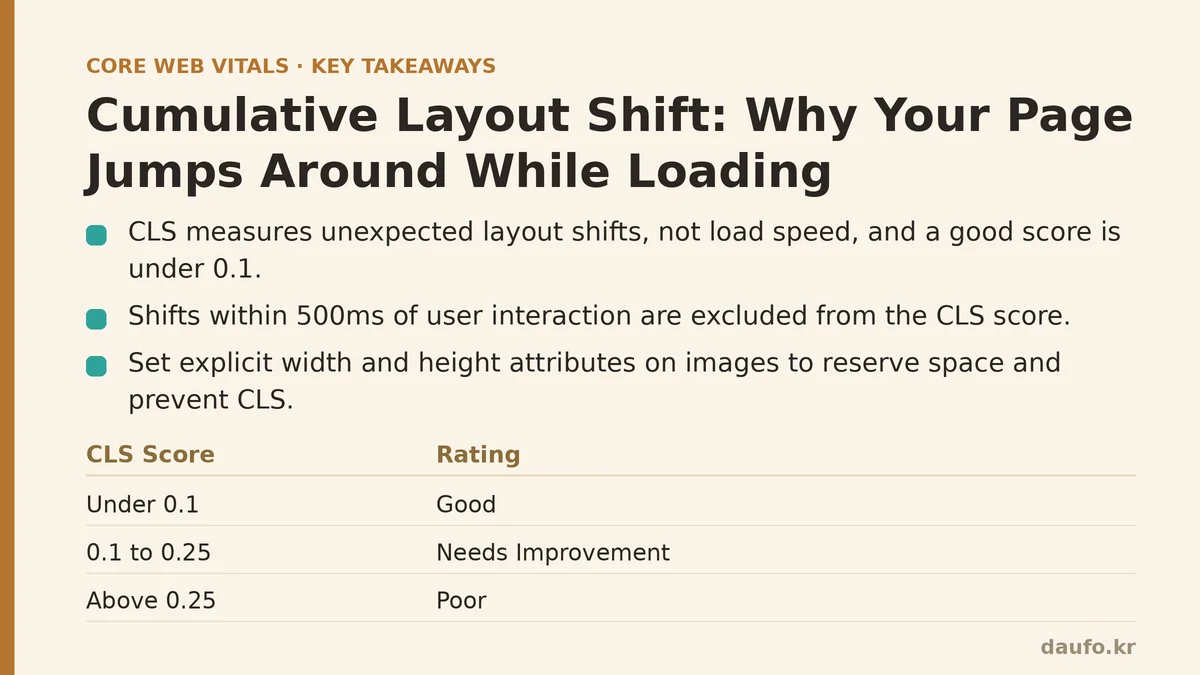
Here’s the part that trips people up: not every visual change counts. If a shift happens within 500ms of a user interaction — like clicking a button that expands an accordion — it’s excluded from the score. CLS only penalizes unexpected shifts, the kind a user didn’t cause and couldn’t predict.
A CLS score under 0.1 is considered “Good.” Between 0.1 and 0.25 is “Needs Improvement.” Anything above 0.25 is “Poor.” These thresholds apply across the entire lifespan of the page, not just the initial load, though most shifts do cluster in the first few seconds while resources are still arriving.
Step 2: Identify Your Biggest Offenders with Real Data
Guessing at layout shift causes wastes time. Instead, pull up Chrome DevTools, open the Performance panel, record a page load, and look for the red “Layout Shift” markers in the timeline. Clicking on one will show you exactly which DOM element moved, by how much, and when.
For a broader view across real users rather than a single test load, check the Core Web Vitals report in Google Search Console or run a query against the Chrome UX Report (CrUX) data for your domain. This tells you whether the problem is affecting a handful of pages or your entire site template.
PageSpeed Insights is also useful here, since it lists the specific elements contributing to layout shift under its “Avoid large layout shifts” audit. Write down every element it flags before moving to the next step — you’ll want a checklist, not a vague impression.
Step 3: Fix Images and Videos Without Explicit Dimensions
This is, by a wide margin, the most common source of CLS. When an <img> tag has no width and height attributes, the browser has no idea how much vertical space to reserve for it. It renders the surrounding text first, then the image downloads, and the entire page below that point shoves downward.
The fix is straightforward:
<!-- Problematic: no reserved space -->
<img src="hero-banner.jpg" alt="Hero banner">

<!-- Fixed: browser reserves space immediately -->
<img src="hero-banner.jpg" alt="Hero banner" width="1200" height="600">
Modern browsers use the width and height attributes (along with the image’s natural aspect ratio) to calculate space before a single byte of the image has downloaded. If your images are responsive and sized with CSS, pair this with an aspect-ratio rule so the reserved box scales correctly across screen sizes:
img {
  height: auto;
  aspect-ratio: attr(width) / attr(height);
}
The same logic applies to embedded videos and iframes. A YouTube embed without a defined container size is a near-guaranteed layout shift the moment the player loads.
Step 4: Reserve Space for Ads, Embeds, and Dynamic Content
Ad slots are notorious for causing dramatic shifts, since ad networks often don’t know what size creative will fill the slot until the auction resolves. If you don’t pre-allocate space, the ad drops in and pushes everything below it downward — sometimes multiple times as different ad sizes get swapped in.
The solution is to set a minimum height on the container before the ad script runs:
.ad-slot {
  min-height: 250px; /* Match your most common ad unit size */
  contain: layout;
}
The same principle applies to third-party widgets: social media embeds, comment sections, chat widgets, and cookie consent banners. Any element injected by JavaScript after the initial render is a candidate for layout shift unless you’ve reserved its footprint in advance. If a widget’s exact size is unpredictable, consider placing it in a fixed-height scrollable container rather than letting it dictate the page’s flow.
Step 5: Control Web Font Loading Behavior
Fonts cause a subtler but still measurable form of CLS known as “flash of unstyled text” (FOUT) or invisible text (FOIT), where the fallback font renders first and the webfont swaps in later, changing line heights, letter spacing, and overall text width. Headlines in particular can reflow entire sections when this happens.
Two practical fixes:
- Use
font-display: optionalorfont-display: swapcarefully, combined with a fallback font that closely matches the metrics (x-height, width) of your webfont. Tools like Font Style Matcher can help you tune the fallback so the swap is nearly invisible. - Preload critical fonts so they arrive sooner and the swap window shrinks:
<link rel="preload" href="/fonts/main-variable.woff2" as="font" type="font/woff2" crossorigin>
Reducing the duration between fallback text rendering and webfont rendering doesn’t just improve perceived polish — it directly reduces the accumulated shift score, since a faster swap means less time for the user to interact with soon-to-move content.
Step 6: Never Insert Content Above Existing Content
This one is behavioral rather than technical: avoid dynamically injecting new content above content that’s already visible, unless it’s in direct response to a user action. A classic offender is a “cookie consent” banner or a promotional bar that slides in from the top of the page a few seconds after load, pushing the entire page down.
If you need to show this kind of message, reserve the space for it from the start — even as an empty placeholder — or anchor it as an overlay that doesn’t participate in document flow at all. Position: fixed or position: sticky elements don’t cause layout shift for the content beneath them, since they’re removed from the normal flow.
Step 7: Re-Measure and Set a Regression Budget
Fixing CLS once doesn’t guarantee it stays fixed. A new marketing banner, an updated ad tag, or a font swap introduced by a redesign can quietly reintroduce shifts months later. Set up field data monitoring using the web-vitals JavaScript library to log real CLS scores from actual visitors, and pipe that data into your analytics platform.
import {onCLS} from 'web-vitals';

onCLS(console.log);
Treat CLS the way you’d treat a performance budget for page weight: pick a threshold (0.1 is the recommended ceiling), and fail your CI build or flag a warning if a deployment pushes real-user CLS above it. Catching a regression before it reaches production is far cheaper than diagnosing it after search rankings dip.
Quick Reference: Common CLS Causes and Fixes
| Cause | Symptom | Fix |
|---|---|---|
| Images without dimensions | Page content shifts down as images load | Add explicit width/height or aspect-ratio |
| Ad slots / embeds | Sudden jumps when third-party content resolves | Reserve min-height before content loads |
| Web font swapping | Text reflows once webfont replaces fallback | Match fallback metrics, preload fonts, tune font-display |
| Injected banners/bars | Page pushes down after a few seconds | Reserve space upfront or use fixed positioning |
| Late-loading dynamic content | Layout resizes as JS-rendered elements appear | Pre-allocate container size, avoid inserting above the fold |
Layout stability isn’t glamorous work — nobody screenshots a page that didn’t jump. But it’s often the fastest, cheapest Core Web Vitals win available, since most fixes are a handful of CSS attributes rather than an architectural overhaul. Start with Step 2, get your list of offenders, and work down the checklist from there. Related guides: Ad and Embed Layout Shift: How to Stop Your Page from Jumping Before Your Eyes, How to Audit and Fix Layout Shifts for Beginners: A Step-by-Step CLS Guide, and Core Web Vitals in Single-Page Applications: Why the Basics Aren’t Enough.
🔗 Recommended Reading
- How to Enable Browser Caching on Your Website: A Beginner's Step-by-Step Tutorial
- Web Performance Monitoring Tools Compared: Lighthouse, PageSpeed Insights, and WebPageTest
- CDN vs. Origin Server: Which to Optimize First for Latency
- Common Mistakes That Break Web Font Performance and How to Fix Them
- Site Speed Optimization for Fintech Websites: Balancing Security, Compliance, and Performance