Say you are trying to shave a second off your Largest Contentful Paint, and someone on your team suggests putting a CDN in front of the site. You sign up for a provider, paste in a domain, and the dashboard drops you into a wall of options: origin servers, CNAME records, cache TTLs, purge APIs, origin shields, and a dozen toggles you have never seen before. The documentation assumes you already know what half of it means.
This guide walks through the setup in the order most people hit it, and then switches to a troubleshooting format for the parts that break. The goal is not to sell you on a CDN — for a single-server app with mostly dynamic traffic and users in one country, a CDN may not move the needle much. But for anything serving static assets, images, or global traffic, it is one of the highest-leverage changes you can make.
Before You Start: What a CDN Changes (and What It Doesn’t)
A CDN is a network of edge servers distributed across regions. When a visitor requests an asset, the DNS record for your domain resolves to a nearby edge node instead of your origin server. If that node has a cached copy, it serves it directly. If not, it fetches from your origin, caches the response, and returns it.
What this changes:
- Latency — requests terminate closer to the user, cutting round-trip time.
- Origin load — cached assets stop hitting your server entirely.
- Resilience — many CDNs absorb traffic spikes and basic DDoS patterns.
What it does not fix:
- Slow backend code — a dynamic page that takes 800ms to render server-side will still take that long on a cache miss.
- Bad database queries — the CDN cannot cache what the origin cannot produce quickly.
- Poor front-end delivery — unminified JS, render-blocking CSS, and unoptimized images still hurt even when served from an edge.
A practical rule: a CDN is a delivery improvement, not an application improvement. Fix the origin first, then put a CDN in front of it.
The Setup Path: DNS, Origin, Cache Rules, Verify
This is the minimum viable sequence. Most providers (Cloudflare, Fastly, Bunny, CloudFront) follow a similar shape.
Step 1: Point a subdomain at the CDN, not your apex domain
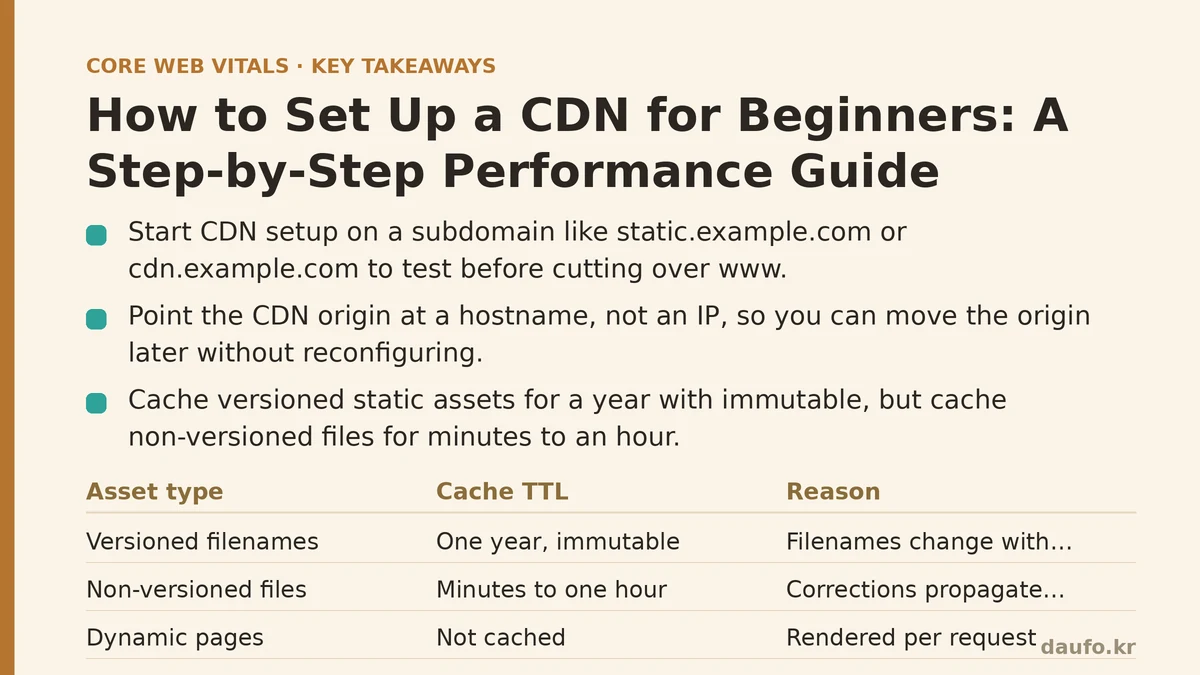
Start with static.example.com or cdn.example.com as the CNAME target. Test on a subdomain before cutting over www. This gives you a rollback path without touching your primary traffic.
# Check what your domain currently resolves to
dig static.example.com +short

# After configuring the CDN, verify it now resolves to edge IPs
dig static.example.com +short
The second command should return IPs that belong to your CDN provider, not your origin. If it still returns your origin IP, the CNAME is not propagating or you have a conflicting A record.
Step 2: Set the origin and a sane cache TTL
Most dashboards ask for an origin URL. Point it at a hostname, not an IP, so you can move the origin later without reconfiguring the CDN.
For cache TTL, the safe default for static assets is long. Versioned filenames (app.4f3a2b.js, style.9c1d.css) can be cached for a year with immutable. Non-versioned files like favicon.ico or /robots.txt should be short — a few minutes to an hour — so corrections propagate quickly.
Step 3: Configure headers at the origin, not just in the CDN
The CDN will respect Cache-Control headers from your origin unless you override them. Set them explicitly. For a typical static asset server:
# nginx: cache versioned assets hard, everything else modestly
location ~* \.(?:js|css|woff2|png|jpg|webp|avif)$ {
    add_header Cache-Control "public, max-age=31536000, immutable";
}

location = /index.html {
    add_header Cache-Control "public, max-age=300, must-revalidate";
}

location = /sw.js {
    add_header Cache-Control "no-cache";
}
Two details matter here. immutable tells browsers not to revalidate even on reload, which is correct only for filenames that change when content changes. And no-cache is not the same as no-store — no-cache means “revalidate before using,” which is exactly what a service worker file needs.
Step 4: Verify with response headers, not a visual check
After the DNS change, request an asset and inspect the headers. You are looking for your CDN’s cache status header and a correct Cache-Control.
curl -sI https://static.example.com/app.4f3a2b.js | \
  grep -iE 'cache-control|age|cf-cache-status|x-cache|via'
A first request typically returns MISS (or no cache header). A second request should return HIT with a non-zero Age value. If the second request still shows MISS, the asset is not being cached — most often because the origin is sending Set-Cookie, Cache-Control: private, or Vary: *.
Troubleshooting: Symptom → Cause → Fix
The rest of this article is organized by what you will see break. Each section names the symptom, the underlying cause, and the concrete fix.
Symptom: Assets load slowly on first visit but fast afterward
Cause: This is expected behavior, called a cold cache. The first request per edge node per asset is a miss. Subsequent requests from that region hit the cache.
Fix: Nothing, usually. If cold-start latency is unacceptable — say, for a launch event with a known spike — pre-warm the cache by issuing requests from multiple regions before the traffic arrives. Most providers offer a pre-warm or “fetch” API for this.
When not to bother: For small sites with steady traffic, cache warming is overkill. The steady-state hit rate usually climbs to 80–95% within hours.
Symptom: Users see stale content after a deploy
Cause: Long TTLs on non-versioned files. If you deploy a new index.html but the CDN has it cached for 24 hours, some users keep the old version until the TTL expires or the edge is purged.
Fix: Two options, and they are not equivalent.
- Purge the cache. Every provider has a purge API or dashboard button. Cloudflare calls it “purge cache”; Fastly uses “purge” or “soft purge.” Purge by tag or URL path is safer than purge-everything, which throws away your entire cache and causes an origin spike.
# Cloudflare: purge a single URL via API
curl -X POST "https://api.cloudflare.com/client/v4/zones/$ZONE_ID/purge_cache" \
  -H "Authorization: Bearer $CF_API_TOKEN" \
  -H "Content-Type: application/json" \
  --data '{"files":["https://static.example.com/index.html"]}'
- Version your filenames. This is the better long-term answer. If
app.a1b2c3.jschanges toapp.d4e5f6.json every deploy, there is nothing to purge. The old file is untouched, the new file is a cache miss on first request, and every subsequent request is a hit. This is why build tools hash filenames by default.
Symptom: Dynamic pages are being cached and users see each other’s data
Cause: The origin is not signalling that a response is user-specific. A page that renders a logged-in username, a cart, or a CSRF token is dynamic and must not be cached at the edge.
Fix: Send Cache-Control: private, no-store on authenticated responses. Do not rely on the CDN to detect this — be explicit. A common failure is caching an API response that looked static because the origin did not set any cache header and the CDN applied a default.
When this is unrecoverable: If you have already cached user data for a public URL, purge that URL immediately and audit your cache key. A cache key that ignores cookies or an Authorization header is the root cause.
Symptom: Fonts or images fail to load with a CORS error
Cause: When static assets are served from static.example.com but the page is on www.example.com, cross-origin requests for fonts (@font-face) and some image operations require CORS headers. Without them, the browser blocks the resource even though the CDN returned it.
Fix: Add an Access-Control-Allow-Origin header at the origin or the CDN. For public assets, * is acceptable. For anything user-specific, echo the requesting origin instead.
# Allow cross-origin font and image loads from the main site only
location ~* \.(?:woff2|ttf|otf|webp)$ {
    add_header Access-Control-Allow-Origin "https://www.example.com";
    add_header Cache-Control "public, max-age=31536000, immutable";
}
Failure mode to watch: If you set Access-Control-Allow-Origin: * and also send credentials, the browser rejects the response. Wildcards and credentials: 'include' are mutually exclusive.
Symptom: HTTPS shows a certificate warning after the DNS switch
Cause: The CDN issues its own certificate for your hostname, and your origin certificate may still be served for connections from the CDN to the origin. If the origin uses a self-signed certificate, the CDN may refuse to connect.
Fix: Ensure your origin serves a valid certificate (Let’s Encrypt is fine), or enable the provider’s “full” or “full strict” SSL mode depending on naming. Avoid “flexible” mode, which encrypts the visitor-to-CDN leg but leaves CDN-to-origin unencrypted — a common misconfiguration that causes redirect loops.
Symptom: Performance got worse, not better
Cause: Several possibilities, in rough order of likelihood.
- Missing origin connection reuse. The CDN is opening a fresh TCP and TLS handshake to your origin on every miss. Enable HTTP/2 or HTTP/3 between CDN and origin.
- Cache hit rate is low. If most requests are cache misses, you have added a network hop without removing any work. Check the hit rate metric and your cache headers.
- DNS is resolving to a distant edge. If your audience is in Europe and the CDN is routing them to a US edge, latency increases. Most providers use anycast to prevent this, but misconfigured routing rules or geographic restrictions can override it.
Fix: Start with hit rate. If it is under 70% for static assets, your cache headers are the problem. If it is high but latency is still worse, check the CDN-to-origin connection settings.
A Checklist Before You Roll Out
Run through this before pointing production traffic at the CDN:
| Check | Why it matters |
|---|---|
| Only static asset subdomains point at the CDN | Limits blast radius if something is misconfigured |
| Versioned filenames for JS, CSS, and images | Removes the need to purge on every deploy |
Cache-Control set at the origin, not just the CDN | Keeps behavior consistent if you change providers |
Authenticated responses marked private, no-store | Prevents one user seeing another’s cached data |
| CORS headers present for fonts and cross-origin assets | Prevents silent load failures |
| Purge or pre-warm API tested in staging | Confirms you can react to a bad deploy in seconds |
| Hit rate metric visible in a dashboard | Gives you a single number to watch when something feels slow |
When a CDN Is Not the Right Move
A CDN is not free complexity. There are cases where it actively hurts.
- Single-region, low-traffic internal tools. If all users are on the same network as the server, a CDN adds a hop and a configuration surface with no latency benefit.
- Predominantly dynamic, uncacheable pages. A dashboard for logged-in users, an admin panel, or an API returning per-request data gets little from a CDN unless you are using edge compute.
- Sites already behind a managed platform. If you are on Vercel, Netlify, or similar, you already have a CDN. Adding another one on top usually just splits your cache and complicates debugging.
For those cases, focus on origin performance, database indexing, and front-end bundle size. Come back to the CDN when you have static assets worth distributing and users spread across regions.
The next time you audit a slow site, check whether static assets are served with long cache TTLs and a nearby edge before you touch anything else. That single check catches more performance problems than most optimization advice combined.
Related guides: Caching Strategies for Beginners: A Step-by-Step Guide to Faster Page Loads, A CDN Can Cut Latency Dramatically — Yet Most Setup Guides Miss the Part That Counts, and Troubleshooting Why Your CDN Isn’t Improving Page Speed: Common Mistakes.
🔗 Recommended Reading
- How to Enable Browser Caching on Your Website: A Beginner's Step-by-Step Tutorial
- Web Performance Monitoring Tools Compared: Lighthouse, PageSpeed Insights, and WebPageTest
- CDN vs. Origin Server: Which to Optimize First for Latency
- Common Mistakes That Break Web Font Performance and How to Fix Them
- Site Speed Optimization for Fintech Websites: Balancing Security, Compliance, and Performance