The assumption that browsers download resources in the order they appear in your HTML is one of the most persistent misconceptions in web development. It feels logical. You write <link rel="stylesheet" href="styles.css"> in the head, and you expect that stylesheet to be fetched before the script at the bottom of the body. In an ideal sequential world, that’s how it would work.
The browser doesn’t operate that way. Modern browsers are sophisticated scheduling engines. They analyze every resource you request — scripts, stylesheets, images, fonts — assign each one a priority level, and then decide what to fetch first based on a complex set of rules. The order your tags appear in the HTML is only one input among dozens. Understanding this system transforms how you approach page speed optimization.
The Baseline: What Every Developer Should Know
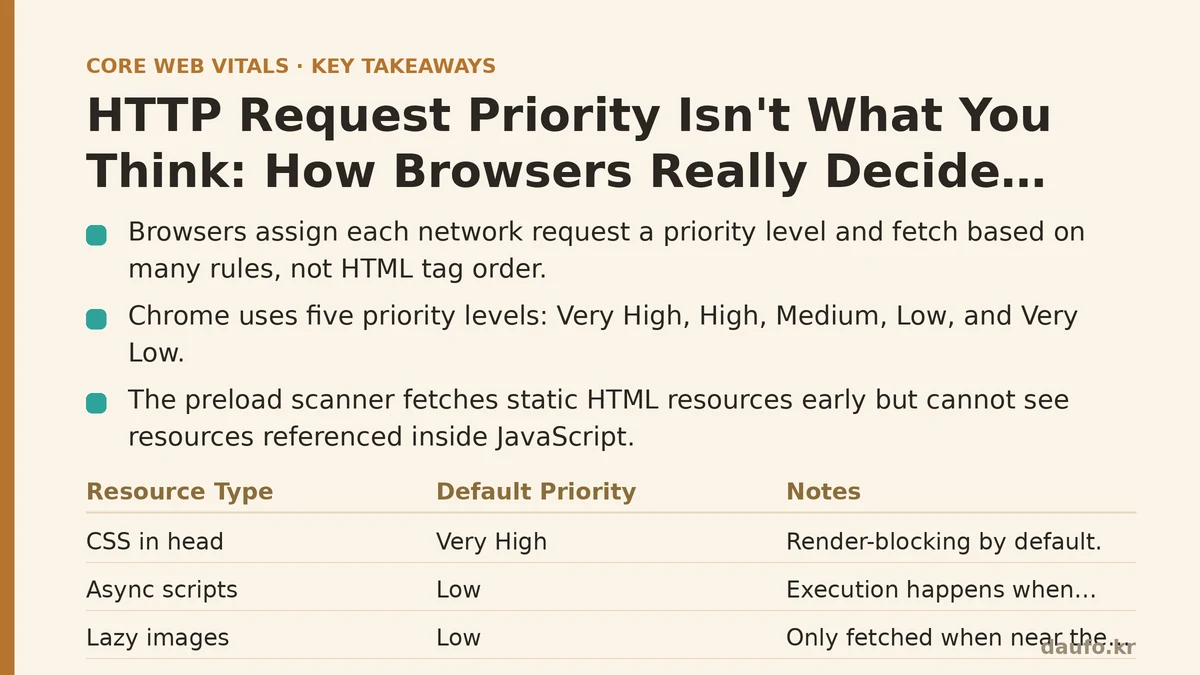
Before diving into the browser’s decision-making machinery, you need to understand the basic priority tiers. Chrome, for example, assigns one of five priority levels to every network request: Very High, High, Medium, Low, and Very Low.
The quick reference table for common resource types:
| Resource Type | Default Priority | Notes |
|---|---|---|
CSS (in <head>) | Very High | Render-blocking by default. |
Synchronous scripts (in <head>) | High | Render-blocking, but slightly lower than CSS. |
async scripts | Low | Execution happens when ready; no blocking. |
defer scripts | Low | Execution after parsing. |
Images (above-the-fold, loading="eager") | High | The browser estimates visibility from layout. |
Images (below-the-fold, loading="lazy") | Low | Only fetched when near the viewport. |
Fonts (@font-face) | High | Fetch triggered by CSS usage. |
| Fetch/XHR requests | High | Depends on request type and context. |
Preload hints (<link rel="preload">) | Very High | Explicitly elevated by the developer. |
Here’s the part that surprises most developers: two identical resource types can get different priorities based on context. A CSS file loaded as a render-blocking stylesheet in the head gets Very High priority. The same CSS file loaded via a JavaScript fetch() call gets a lower priority. The browser doesn’t just look at the file extension; it looks at the entire loading context.
This is why the naive mental model of “first tag, first download” falls apart. The browser reads the entire document, builds a dependency graph, and then schedules fetches.
The Advanced Layer: Preload Scanner, Dependency Graphs, and Dynamic Priority Shifts
Here’s where the system gets both fascinating and fragile.
The Preload Scanner
When the main HTML parser is busy — parsing markup, constructing the DOM, handling scripts — it can’t also be hunting for new resources. It’s single-threaded. To work around this, the browser spawns a secondary process: the preload scanner. This scanner runs slightly ahead of the main parser, reading raw bytes of HTML to find tags that reference external resources. When it finds one, it immediately starts the fetch process without waiting for the main parser to officially reach that tag.
The preload scanner has one critical limitation: it only understands static HTML tags. If a resource is referenced inside a JavaScript file (e.g., via fetch(), import(), or by dynamically creating an <img> tag), the preload scanner can’t see it. The fetch request will only begin when the JavaScript executes.
What this means in practice: A script loaded with <script src="app.js"> will have its download initiated by the preload scanner almost instantly, even if it appears late in the HTML. But an image inside a JavaScript carousel won’t be fetched until app.js — which the browser already fetched and executed — runs and creates that <img> element. That’s a serialization bottleneck you can’t solve by reordering your HTML.
Dependency Rules
Browsers enforce hard rules about execution order. A <script defer> will never execute before a <script> without the defer attribute that appears earlier in the document, regardless of priority. Similarly, a <script async> can execute at any time, so if it depends on a library loaded via defer, you’ve created a race condition.
The browser resolves these dependencies by assigning priority. A synchronous script gets High priority. The external file it references via import() or a dependency it needs — like a Web Worker or a module — can get an elevated priority because the browser understands the dependency chain.
Dynamic Priority Shifting
This is where the browser earns its reputation as a smart scheduler. Priorities are not static; they shift in real-time based on network conditions and user interaction.
- If JavaScript delays loading a
fetch()request for a critical resource, the browser may re-prioritize the network connection for that request. - If a user scrolls down quickly, images entering the viewport get their priority temporarily boosted from Low to High.
- On slow networks (detected via Connection Timing API and
navigator.connection), the browser is more aggressive about downgrading Low-priority requests to Very Low, freeing bandwidth for critical render-blocking resources.
Chrome’s “Low Priority in Browsers” feature, for example, deliberately re-schedules all non-critical requests when network contention is detected. This is aimed at scenarios like WebViews or low-end devices where every kilobyte of bandwidth matters.
The Influence of <link rel="preload">
The most direct way to override the browser’s default priority logic is to use <link rel="preload">. This hint tells the browser: “Fetch this resource now, at the highest priority, because you will need it soon.” For resources discovered late (e.g., a font referenced inside a CSS file that itself is loaded via fetch()), preload is often the only way to get them fetched early.
But preload is a blunt instrument. Use it sparingly and only for resources that are proven to be critical. Overuse dilutes the browser’s scheduling intelligence, potentially stepping on the priorities of other, important resources.
Beginner’s Playbook: Simple Rules That Work
For developers who just want to ship a fast page without becoming a browser internals expert, these rules work reliably.
- Keep render-blocking CSS minimal and in the head. That’s where the browser expects it. Use the preload scanner’s natural advantage by keeping stylesheets as separate static files, not inlined or injected via JavaScript.
- Use
deferfor all non-critical JavaScript (instead ofasyncunless you have a specific reason).deferguarantees execution order and keeps the preload scanner happy because the browser knows it can fetch these scripts in the background. - Lazy-load below-the-fold images with
loading="lazy". This tells the browser you don’t need them immediately, and the browser will use its fuzzy layout prediction to fetch them just in time. - Don’t fight the browser with
preloadunless you have a measured problem. Let the browser’s scheduling engine do its job. You need to see a specific resource being delayed in a performance trace before adding preload hints. - Avoid putting critical JavaScript in the head. A synchronous script there gets High priority and blocks rendering. Move it to the end of the body with
deferunless it truly must run before the DOM is parsed.
Advanced Playbook: Tactical Moves for Performance-Sensitive Sites
If you’re wrestling with Core Web Vitals budgets or working on a complex single-page application, these moves will measurably help.
- Preload your hero image or LCP element. The Largest Contentful Paint (LCP) element is often an image whose URL only appears after CSS or JavaScript is applied. Preloading it with
as="image"(and appropriatemediaattributes for responsive images) can rescue your LCP score. - Use
fetchpriority="high"on critical images. This attribute tells the browser to escalate a specific image’s priority. Use it only for the single most important image on the page — the LCP element. Overuse is counterproductive. - Preload fonts that are discoverable only inside CSS files. The browser doesn’t parse CSS until it finishes loading it. So a font-face rule in
styles.csswon’t trigger a font fetch until the CSS is fully downloaded and parsed. Adding a<link rel="preload" href="my-font.woff2" as="font">to the HTML bypasses this sequential process. - Eliminate dynamic
fetch()calls for critical data. If your page renders content based on an API response, and that content is above-the-fold, don’t rely on JavaScript to discover the data. Use static HTML or server-side rendering for the critical content, then enhance it with JavaScript. - Understand the cost of third-party scripts. Each third-party script (analytics, ads, social widgets) has its own fetching and execution timeline, and the browser’s priority system treats them independently. Moving a third-party script to
asyncdoesn’t prevent it from competing for network bandwidth with your critical resources. If a third-party script is slow, consider deferring its execution with a delayed loader.
The Tension Between Control and Delegation
The browser’s request priority system is a masterfully engineered compromise. It tries to balance network efficiency, user experience, and developer intent — often with very little information to go on. It uses heuristics, predicts scroll behavior, monitors network conditions, and reassigns priorities on the fly.
For most sites, the right move is to trust the browser — write clean, semantically correct HTML, use defer for scripts, lazy-load images, and keep CSS render-blocking only when you need it. The browser’s default priorities are well-optimized for the typical page structure.
But for the top 1% of sites, where every millisecond matters and LCP scores are fiercely defended, you need to understand the mechanics. You need to know when the preload scanner can’t see a resource, when a dependency chain creates a bottleneck, and when a single fetchpriority="high" attribute swings a performance budget.
The browser gives you the tools to override its defaults, but it expects you to use them with precision. Guesswork is the enemy of performance. Measure first, identify the actual bottleneck, and then apply a targeted fix. That’s the difference between loading resources fast and loading the right resources first.
When was the last time you opened your browser’s network panel and checked the priority column? The data there will teach you more about your site’s loading behavior than any theoretical guide.
Related guides: Total Blocking Time and Long Tasks: What’s the Difference, and Why Does It Matter?, Animating with Intent: From Janky to Buttery-Smooth 60fps in a Real Dashboard, and Fixing Bad INP Scores: A Symptom-Cause-Fix Guide to Reducing Main Thread Work.
🔗 Recommended Reading
- How to Enable Browser Caching on Your Website: A Beginner's Step-by-Step Tutorial
- Web Performance Monitoring Tools Compared: Lighthouse, PageSpeed Insights, and WebPageTest
- CDN vs. Origin Server: Which to Optimize First for Latency
- Common Mistakes That Break Web Font Performance and How to Fix Them
- Site Speed Optimization for Fintech Websites: Balancing Security, Compliance, and Performance